The Most Natural Way to Listen to the Web.
Read any webpage, article, or PDF aloud with high-quality, human-like AI voices. Powered by advanced generative AI and state-of-the-art TTS (Text-to-Speech).
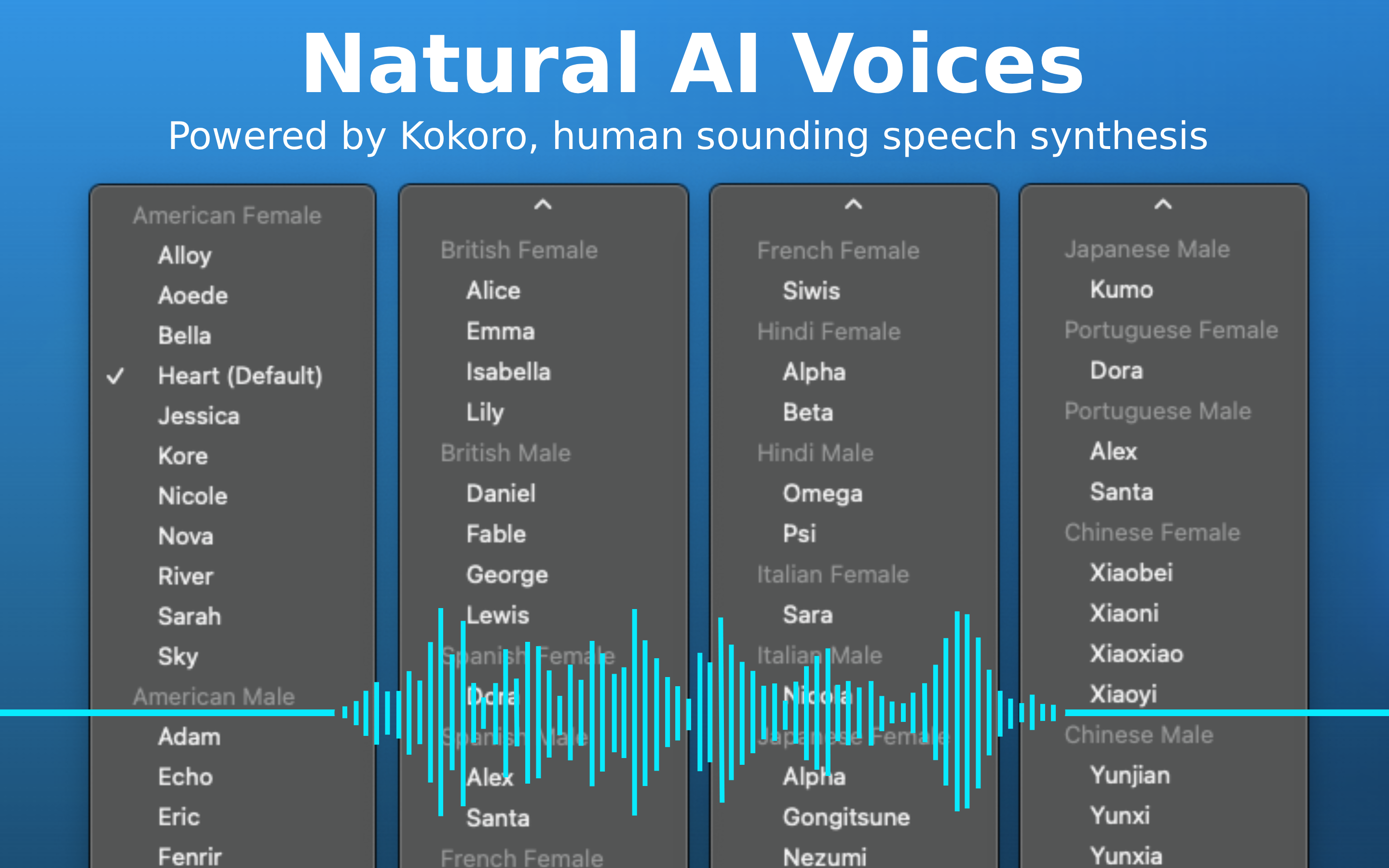
Read any webpage, article, or PDF aloud with high-quality, human-like AI voices. Powered by advanced generative AI and state-of-the-art TTS (Text-to-Speech).
The BetterTTS app powers the extension by default to deliver the best possible experience. "Run in Browser" mode means the app won't need to be installed, but results in slower generation, worse quality audio, and less accurate pronunciation of words. Download the full app for the optimal reading experience.
Designed for productivity, accessibility, and pure enjoyment.
Enjoy listening with cutting-edge Kokoro TTS and Misaki G2P engines for natural pronunciation across multiple languages (English, Spanish, French, Chinese, Japanese*, and more).
* Japanese is only currently supported on the Windows and Linux app.
Not just for web pages! BetterTTS features a custom-built PDF reader optimized for long documents. Read full documents, skip pages, and jump to specific sections instantly.
Sit back and listen. BetterTTS automatically highlights the spoken text, scrolls down as you read, and even clicks 'Next Page' for you when you reach the end of an article.
Looking for the best text-to-speech extension? BetterTTS is the premier choice for reading long web pages, articles, and textbooks, fully optimized to provide high-quality AI speech seamlessly.
Powerful features, beautifully designed.
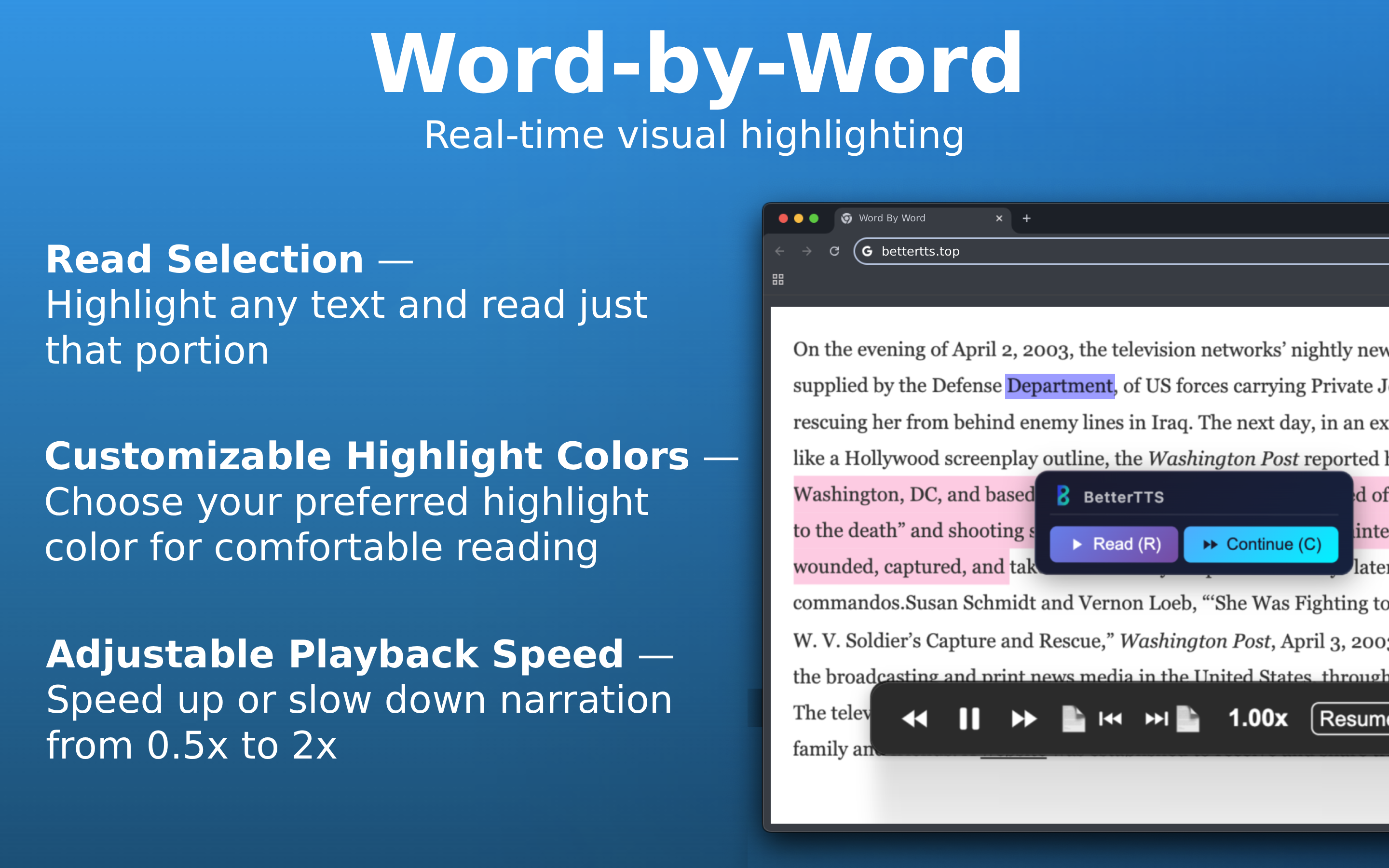
Follow along visually as each word lights up in real time. Select any text on a page and read just that portion, adjust playback speed from 0.5x to 2x, and pick your preferred highlight color for comfortable reading sessions.
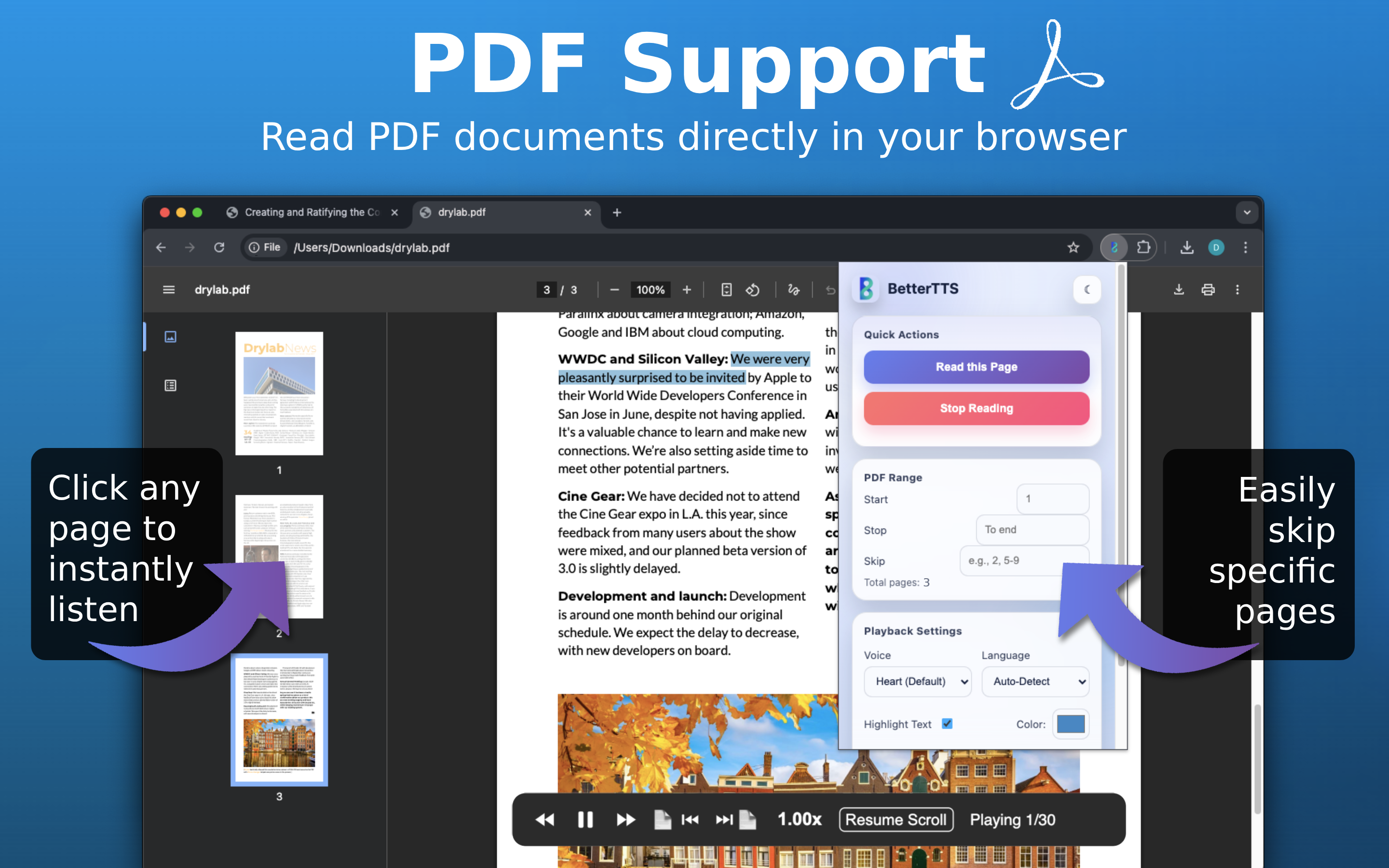
Read PDF documents directly in your browser with our custom-built viewer. Set exact start and stop pages, skip specific pages like title pages or bibliographies, and click any page thumbnail to jump straight to it. Navigate seamlessly between pages while BetterTTS reads aloud.
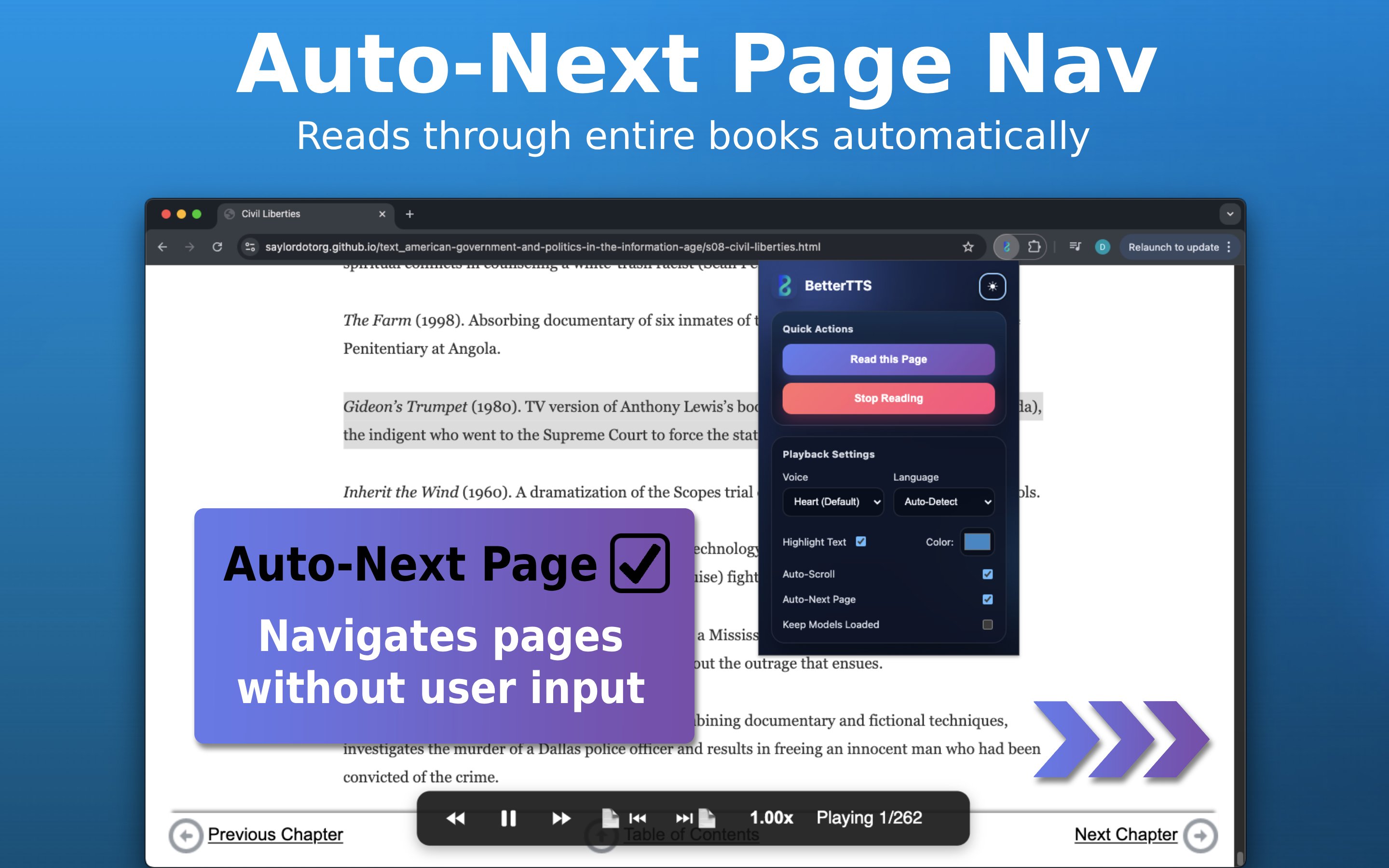
Read through entire books and multi-page articles without lifting a finger. When BetterTTS finishes the current page, it automatically advances to the next one. Perfect for online textbooks, serialized articles, and documentation that spans multiple pages.
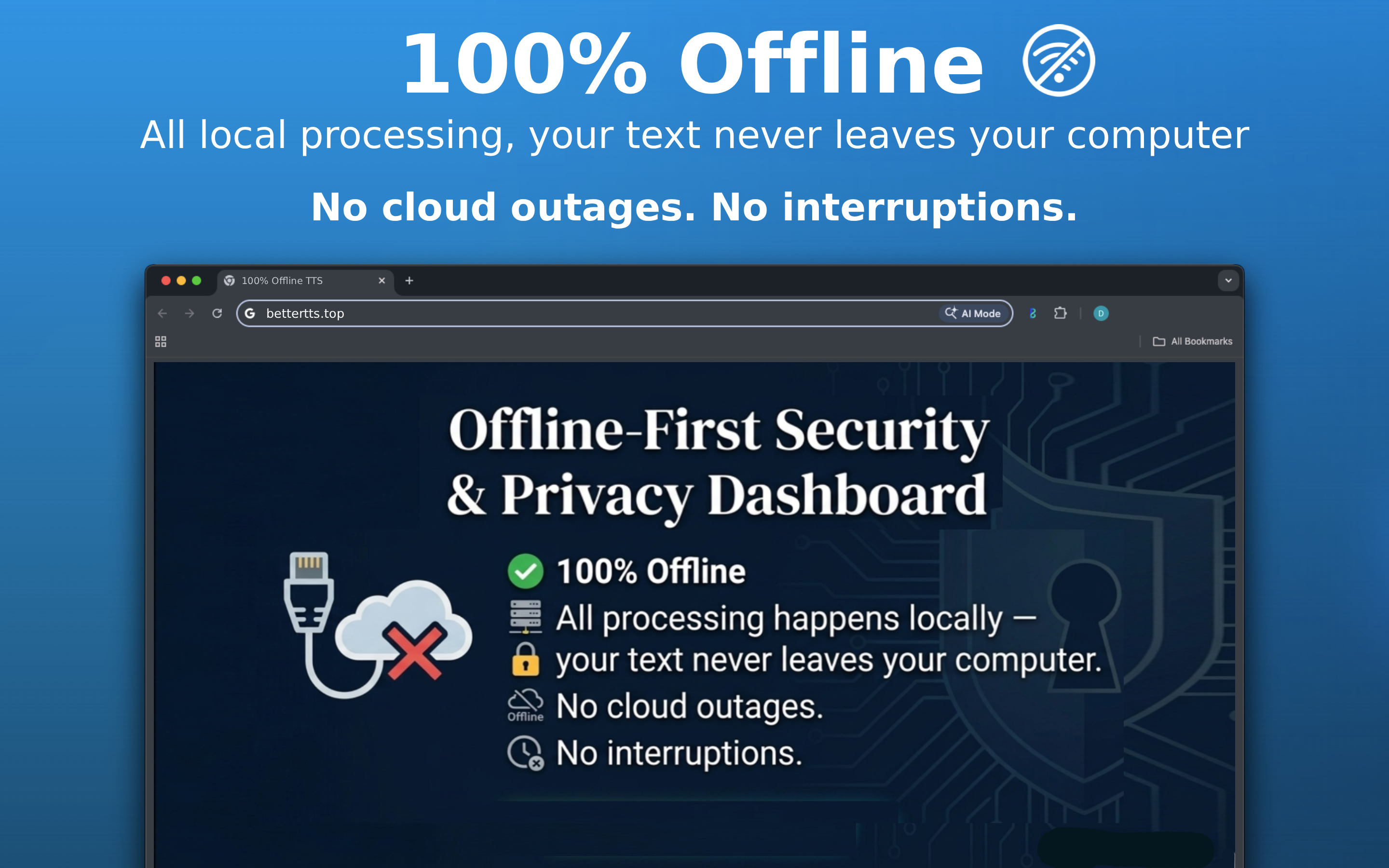
All speech processing happens locally on your computer — your text never leaves your machine. No cloud servers, no data collection, no outages, and no interruptions. Your reading stays completely private, always available, and lightning fast.
BetterTTS is powered by AI trained purely on public domain audio — no scraped copyrighted material. Enjoy high-quality, natural-sounding voices with a clear conscience, knowing the technology behind them was built responsibly and transparently.

Read web content in English (US & UK), Brazilian Portuguese, Chinese, French, Hindi, Italian, Japanese*, and Spanish — with more languages coming soon. Each language uses optimized pronunciation models for natural, accurate speech.
* Japanese is only currently supported on the Windows and Linux app.
A few ways to get the most out of your reading experience.
Install BetterTTS from the Chrome Web Store. Click the puzzle icon in Chrome and "Pin" BetterTTS for easy access.
Select text on any website and a popup will immediately appear next to your selection with a "Read" button. Click it or press "R" to read just that text. To read the whole page instead, click the BetterTTS extension icon in your toolbar and click "Read this Page".
In the extension settings, choose from dozens of high-quality voices categorized by accent and language to find the perfect reading companion.
Use the on-screen floating player to pause, play, or adjust speed. You can skip back and forth between pages on websites and PDFs that contain multiple navigable pages. You can also drag the player anywhere on the screen. (Note: changing voices is done in the extension popup settings).
When opening a PDF with our custom viewer, the extension popup changes to show PDF controls. You can set the exact start page, stop page, and specify pages to skip (e.g., "1-3, 10").
BetterTTS offers the reliability of a local-only AI—meaning no cloud outages or server downtime—yet provides fast and high-quality audio. The AI was trained on public domain audio, avoiding copyrighted material. Plus, with features like Auto-Next, you can read entire textbooks with just one click.
The desktop app powers the extension by default, providing faster generation, more accurate pronunciation, and higher audio quality. If you prefer not to install the app, you can enable "Run in Browser" mode in the extension, which processes speech inside your browser tab but with slower startup times and worse quality audio.
We highly recommend selecting the Misaki engine! It significantly improves pronunciation accuracy for ALL supported languages, including English. If you're on Windows or Linux and have sufficient disk space (less than 1 GB per package), you should select it in the settings. For Mac users, the optimal version is bundled into the app and automatically chosen depending on your selected language. (Note: Misaki is only available in the desktop app.)
When BetterTTS finishes reading a page, it automatically looks for a "Next" button or link and clicks it to continue reading. For PDFs, it seamlessly moves to the next document page. If a site uses a custom "Next" button, you can right-click it and select "Set as BetterTTS Auto-Next Button".
This setting keeps the AI models loaded in your system memory even after reading stops. This means your next read request will start almost instantly without needing to reload the engine, though it uses a bit more RAM while active.
We want you to be completely satisfied with BetterTTS. Because we sell our application across different digital storefronts, refund requests are governed by the platform where you made your purchase.

We offer a 6-month money-back guarantee for purchases made via Gumroad. If you are unhappy for any reason, email us at bettertts.help@gmail.com with your order number for a full refund.

Refunds are handled entirely by Microsoft. Go to your Microsoft Account Order History, find BetterTTS, and select "Request a refund." Microsoft typically allows refunds within 14 days.

Apple handles all billing and refunds. We cannot issue refunds on their behalf. To request a refund, visit reportaproblem.apple.com, sign in, and select "Request a refund."

Interactive Preview
